
There are essentially two ways to transfer files to and from your Pi.
1) Use an intermediary
You can transfer files from your Pi to an HDD or cloud storage service (Google Drive, Dropbox, etc.) and then onto the other device.
This is pretty straightforward since connecting a hard drive to a Pi and transferring files works exactly the same as with any other computer.
2) Transfer files directly
The other option, and the reason why you’re probably here right now, is to figure out how to transfer files directly between your Pi and your computer without using an HDD or cloud service in-between.
This is possible (and extremely fast) by utilizing an SSH connection.
In this tutorial, you’ll learn how to transfer files to and from your Pi using a simple terminal command.
Warning: backup your computer before trying out these commands. You can easily override files you don’t want to with a mistyped command.
How to transfer files with SCP
To transfer the files, we’re going to use the scp command, which stands for secure copy.
Here’s what the basic command looks like:
scp user@host:source user@host:destination
As you can see, you need to supply the source file followed by the destination. For both the source and the destination, you’ll enter the user, host, and file location.
Let’s take a look at some examples.
How to transfer files to your Pi
We’ll start by filling in the source.
To find your username and host, you can simply open the terminal on your computer. You’ll see user and host at the beginning of every line:
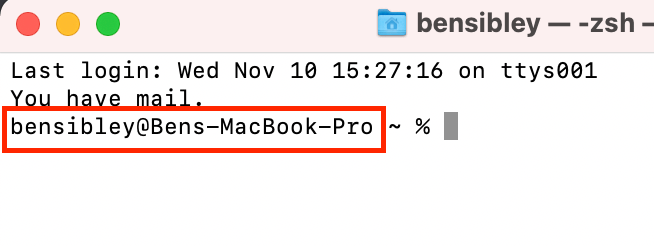
In my example, I’m going to transfer a photo from a Screenshots directory I created on my MacBook, so here’s what the command will look like with the source filled in:
scp bensibley@Bens-MacBook-Pro:Screenshots/screenshot.png user@host:destination
Make sense so far?
Now all you have to do is add the Raspberry Pi as the destination.
For starters, you know the username is going to be “pi.” As for the host, this will be the Raspberry Pi’s IP address. Hopefully, you have this saved somewhere, but if not, you can run the following command from your Pi to get the IP address:
hostname -I
Once you’ve got the IP address, the next step is to decide where you want the file to go.
Tip: When you open the file explorer on the Pi, it starts at the following destination: home/pi/
In my example, I’ll send the screenshot to the Desktop folder on my Pi, so my final command will look like this:
scp bensibley@Bens-MacBook-Pro:Screenshots/screenshot.png pi@192.168.1.206:home/pi/Desktop
This command will get the screenshot.png file from the Screenshots directory on my laptop and send it to the Desktop folder on my Pi.
Once you enter the command, you’ll be asked to enter your Pi’s password, and then the transfer will begin.
SCP is extremely fast, so most files will transfer instantaneously.
Now that you know how to transfer files to your Pi, transferring files from your Pi will be easy.
How to transfer from your Pi
If you want to transfer a file from your Pi to your computer, you just have to reverse the locations so that the Pi comes first and your computer is second, like this:
scp pi@192.168.1.206:home/pi/Desktop/screenshot.png bensibley@Bens-MacBook-Pro:Screenshots
That command will transfer a file called screenshot.png from the Desktop of my Pi to the Screenshots folder on my laptop.
While transferring files is simple, you may want to transfer an entire directory of files to or from your Pi.
Transferring directories is easy too, but there are a few things you need to know first.
How to transfer directories
When transferring directories, you need to be careful how you use forward slashes.
In this example, the “Images” directory does not have a trailing slash but the “Screenshots” directory does. This will transfer the Images directory and its contents into the Screenshots directory on my laptop:
scp pi@192.168.1.206:home/pi/Desktop/Images bensibley@Bens-MacBook-Pro:Screenshots/
In other words, there will be a new “Images” folder inside the “Screenshots” folder.
However, if I add a forward slash after “Images,” this will transfer the contents of the Images folder without copying the folder itself:
scp pi@192.168.1.206:home/pi/Desktop/Images/ bensibley@Bens-MacBook-Pro:Screenshots/
And in this last example, I
And this next example:
scp pi@192.168.1.206:home/pi/Desktop/Images bensibley@Bens-MacBook-Pro:Screenshots
scp pi@192.168.1.206:home/pi/Desktop/Images/ bensibley@Bens-MacBook-Pro:Screenshots